
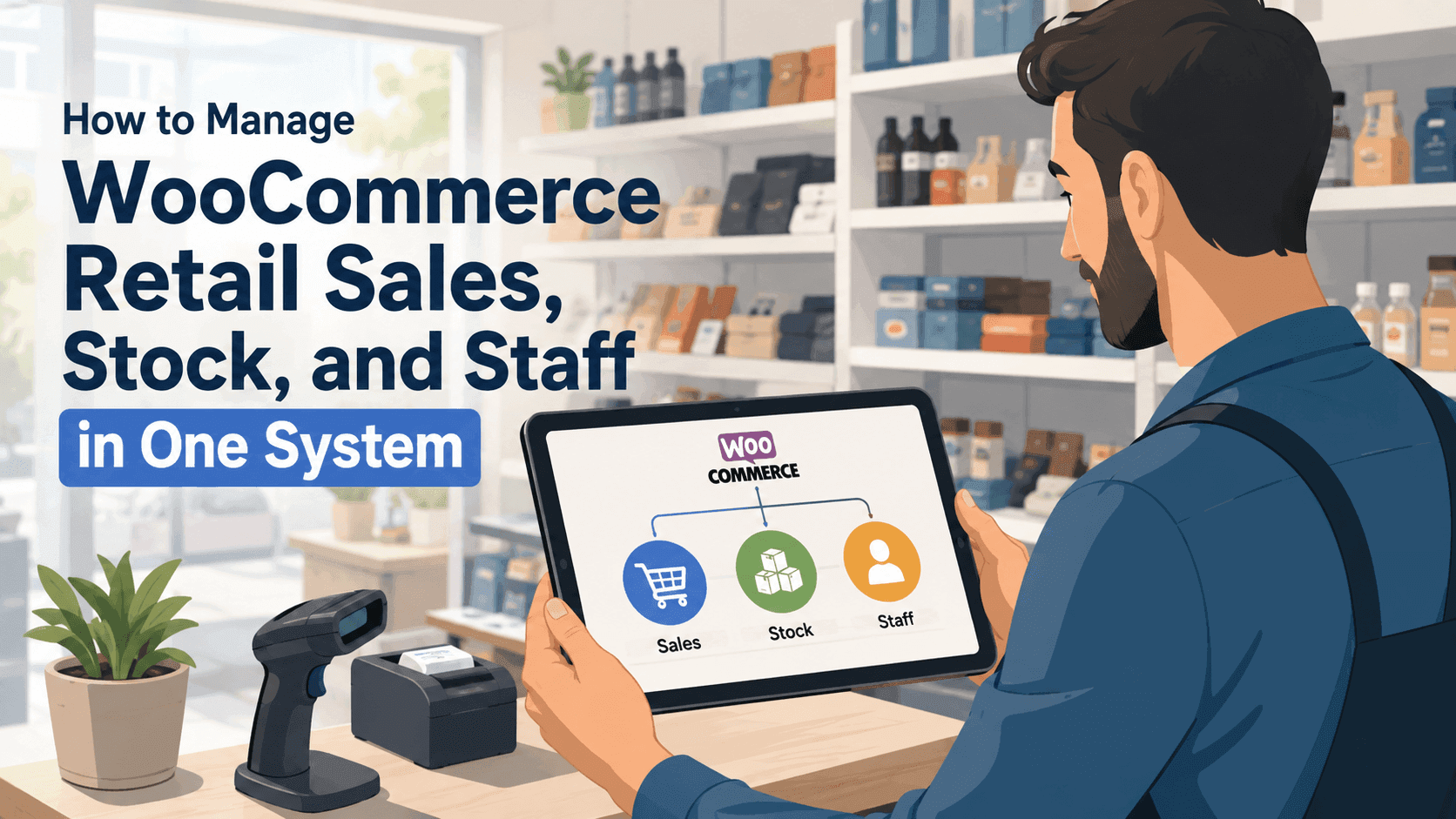
How to Manage WooCommerce Retail Sales, Stock, and Staff in One System
Written by Towhid Islam. Posted in WooCommerce, WordPress
Manage WooCommerce retail sales more efficiently as your store grows. Running a retail store on WooCommerce usually starts simple. You add products, WooCommerce handles the checkout, and orders come in. Then a physical location opens, or a second one, and the setup that worked for one online catalog starts pulling in three directions at once: sales at the counter, stock across every outlet, and staff who need different levels of access to the system.
Most stores end up managing these three things with three different tools — a spreadsheet for stock, a notebook or a separate scheduling app for staff, and WooCommerce orders for sales. Each tool works on its own, but none of them talk to each other. That gap is where most retail management problems start.
Why Retail Store Owners End Up Managing Sales, Stock, and Staff Separately
WooCommerce, by itself, is built for one thing: online sales. It was not designed with a physical counter, a cashier, or a second location in mind. So when a store owner opens a local shop, they usually bolt on separate systems around WooCommerce rather than inside it.
A few patterns show up consistently:
- The online store and the physical counter use different stock counts. WooCommerce only knows about the products it can see. If a customer buys something in person and no one updates the website, the item can still be sold online after it is already gone from the shelf.
- Staff access is handled informally. A small team might just share one login. As the team grows, that becomes a security and accountability problem — there is no way to tell which cashier processed which sale or issued which refund.
- Sales data lives in more than one place. Online orders sit in the WooCommerce dashboard. In-store sales might be logged in a separate till system or not logged in any structured way at all.
- Reporting takes manual work. At the end of the day or the month, someone has to pull numbers from two or three places and combine them by hand just to know what actually sold.
None of these problems are caused by carelessness. They happen because the tools were never meant to work together in the first place.
Common Causes of Disconnected Retail Operations
Before fixing the problem, it helps to be specific about where it comes from. In most WooCommerce retail setups, disconnected operations trace back to one of these causes:
- WooCommerce was set up for e-commerce only, with no point-of-sale layer added later.
- Stock updates are manual, so any sale made outside WooCommerce (in person, over the phone, at a market stall) has to be entered by hand or gets skipped.
- User roles in WordPress are too broad for retail work — WordPress’s default roles (Administrator, Editor, Shop Manager, Customer) do not map cleanly to Cashier, Waiter, or Store Manager.
- Multiple outlets are treated as one location, so stock, tax rules, and sales reports for outlet A and outlet B get mixed together.
- No single reporting view exists, so daily reconciliation depends on whoever is willing to open three tabs and do the math.
Each of these causes is fixable on its own. But fixing them one at a time, with separate plugins or spreadsheets, usually creates a new set of integration problems. The more durable fix is a WooCommerce POS system built to handle sales, stock, and staff as one connected workflow from the start.
Separate Tools vs. a Unified WooCommerce POS System
It helps to see the difference side by side. Here is what a typical separate-tools setup looks like compared to a single WooCommerce POS system that covers sales, stock, and staff together.
| Task | Separate Tools Setup | Unified WooCommerce POS System |
|---|---|---|
| Recording a sale | Logged in a till, spreadsheet, or notebook | Recorded directly against the WooCommerce order and stock |
| Updating stock after a sale | Manual entry, often delayed by hours or days | Updated automatically at the moment of checkout |
| Assigning staff access | Shared logins or informal permission | Role-based access (Cashier, Manager, Store-Keeper) |
| Tracking who processed a sale | Usually not tracked | Logged against the staff member and outlet |
| Multi-outlet stock | Combined into one number, causing false stockouts | Tracked per outlet, with transfers between locations |
| End-of-day reconciliation | Manual, pulled from two or three sources | Generated automatically from one dashboard
|
The pattern across every row is the same: separate tools require a person to manually bridge the gap between sales, stock, and staff. A unified system removes that manual step because the three areas are recorded in the same place from the start.
What a Unified WooCommerce POS System Actually Needs to Do
A WooCommerce POS system that claims to solve this has to cover three areas properly, not just one. Here is what each area involves in practice.
1. Sales Management
This covers everything that happens at checkout, whether the sale happens online or at a physical counter:
- Taking payment in cash, card, or split between multiple methods
- Applying discounts, order notes, and customer details to a sale
- Holding a cart if a customer steps away, without losing the order
- Printing or emailing a receipt
- Handling returns and refunds — full or partial — without breaking the stock count
2. Stock (Inventory) Management
Stock is where most WooCommerce retail stores run into trouble, because a single online stock count cannot represent multiple physical locations accurately. This is the core of WooCommerce inventory management for a physical retail business, and proper WooCommerce stock management needs to support:
- Separate stock counts per outlet, so outlet A running low does not falsely show outlet B as out of stock
- Stock transfers between outlets, with an accept/reject step so nothing moves without confirmation
- A way to keep the WooCommerce-linked online stock synced with whichever outlet is fulfilling online orders
- Purchase price and sale price updates that stay linked to actual supplier costs
3. Staff Management
WooCommerce staff management is often the most neglected part of a retail setup, because WordPress’s own user roles were never designed for a shop floor. Good WooCommerce staff management in a retail-ready system needs:
- Custom roles such as Cashier, Manager, and Store-Keeper, each with different access levels
- The ability to assign a staff member to a specific outlet or counter
- An audit trail — who opened the cash drawer, who processed which order, who issued a refund
- Reporting broken down by staff member, not just by store
A tool that only handles one or two of these three areas still leaves a gap. A cashier app without stock sync just moves the reconciliation problem to the end of the day. A stock plugin without staff roles leaves the store with no accountability for who changed what. This is really the test for whether something qualifies as a genuine WooCommerce POS system rather than a partial add-on: does it treat sales, stock, and staff as one connected record, or as three separate features bundled under one name?
It is also worth being clear about what a WooCommerce POS system is not. It is not a replacement for WooCommerce itself — it runs on top of an existing WooCommerce installation and extends it for in-person selling. And it is not a general accounting package; most POS systems, VitePOS included, focus on the sale, stock, and staff layer, and leave full bookkeeping to dedicated accounting software or a plugin built for that purpose.
How VitePOS Brings Sales, Stock, and Staff Into One Dashboard
VitePOS is a point-of-sale plugin built specifically for WooCommerce, designed to run on top of an existing WooCommerce store rather than replace it. It is used across several types of retail businesses — grocery, general retail, and fashion and apparel stores — as well as restaurants, and it is structured around the same three areas covered above.
Sales, at the counter. The VitePOS features page lists a cart workflow built for a physical counter: holding an order, applying discounts, splitting a payment across cash and card, and printing or emailing a receipt. Refunds, whether full or partial, update the stock count automatically instead of requiring a manual correction afterward.
Stock, across outlets. VitePOS supports what it calls Outlet Wise Stock, where each physical location keeps its own inventory count instead of sharing one number with the website. Store owners can transfer stock between outlets, with the receiving outlet able to accept or reject the transfer before it is added to their count. For stores that prefer a single shared number instead, VitePOS also supports linking outlet stock directly to the main WooCommerce stock, so every outlet and the online store draw from the same count.
Staff, with defined roles. VitePOS includes role-based access control that goes beyond WordPress’s default user roles, with roles such as Cashier, Manager, and Store-Keeper that can be assigned per outlet. It also supports importing existing WordPress user roles and assigning VitePOS-specific permissions to them, which is useful for stores that already have a WordPress team structure in place. Reporting includes a staff-level view, so a store owner can see performance by team member rather than only by outlet.
Because all three areas run inside the same plugin, a sale recorded at the counter updates the same stock count that stock transfers and purchases affect, and it is tied to the staff member logged in at that counter. There is no separate spreadsheet to reconcile at the end of the day.
This does not mean every retail problem is solved by installing a plugin. VitePOS still requires an active WooCommerce store, a reasonably capable hosting setup, and staff who are trained on the workflow — a WooCommerce POS system is only as reliable as the process built around it.
Compared to switching to a hosted platform such as Shopify POS or Square, staying on a WooCommerce POS system like VitePOS means the store keeps its existing WooCommerce product catalog, WooCommerce payment gateways, and any existing WooCommerce plugins already in use. There is more detail on that trade-off in this Vitepos vs Shopify POS comparison and this Vitepos vs Square POS comparison, for stores weighing whether to move off WooCommerce entirely instead of adding a POS layer to it.
For stores deciding between a free and a paid tier of a WooCommerce POS system, it is worth checking exactly which of the sales, stock, and staff features are included at each level — a breakdown like this Vitepos Lite vs Pro comparison makes that easier than testing it by trial and error.
Step-by-Step: Setting Up a Unified Sales, Stock, and Staff Workflow
For a store moving from separate tools to a single system, the setup generally follows this order:
- Set up outlets first. Create one outlet per physical location before adding stock or staff, since both stock and staff assignments are tied to a specific outlet.
- Decide on a stock model. Choose whether each outlet should track stock separately (Outlet Wise Stock) or share the main WooCommerce stock count. This decision is easier to make correctly on day one than to change later once transactions have started.
- Import or create staff roles. Assign each team member a role — Cashier, Manager, Store-Keeper, or a custom role — rather than giving everyone administrator access.
- Assign staff to outlets and counters. This is what allows sales and drawer activity to be traced back to a specific person and location.
- Configure payment and tax settings per outlet, since tax rules can differ by location even within the same country.
- Run a test transaction at each counter, including a hold, a discount, and a refund, to confirm stock and reporting update correctly before going live.
- Review the first week’s reports together with staff, so any confusion about roles or workflow gets caught early rather than after a month of inconsistent data.


Common Mistakes to Avoid
Even with a unified system in place, a few habits undo the benefit:
- Giving every staff member the same access level. This defeats the purpose of role-based permissions and removes accountability.
- Skipping the stock model decision. Switching between shared and outlet-wise stock after transactions have already been recorded can create mismatched counts that are hard to trace back.
- Not training staff on holds and refunds. A cashier who does not know how to hold a cart correctly may end up creating duplicate orders instead.
- Ignoring daily reports. A unified system only helps if someone actually reviews the daily sales reports it produces; the data does not fix anything by itself.
- Treating cashier onboarding as optional. A cashier who has not been walked through the system tends to work slower and make more mistakes at checkout, which is why a short onboarding pass — see this cashier training guide — is worth the time before a new hire’s first shift.
Additional Tips for Retail Store Owners
- Reconcile the cash drawer at the end of every shift, not just at the end of the day, so discrepancies are caught while the shift is still fresh in everyone’s memory.
- Keep SKUs consistent between the website and the physical stock, since inconsistent SKUs are one of the most common causes of stock mismatches in a combined online and offline store.
- Review staff-level reports monthly, not just outlet-level reports, to spot patterns like a specific counter processing more refunds than others.
- Set low-stock thresholds per outlet rather than store-wide, since two outlets rarely sell through the same products at the same rate.
According to WooCommerce’s own product settings documentation, stock management can be configured with low-stock and out-of-stock thresholds directly in the WooCommerce admin panel, which is the foundation any POS system layers on top of.
Choosing Retail POS Software for a WooCommerce Store
Not every piece of retail POS software on the market is built for WooCommerce specifically. Some are hosted, standalone platforms that expect a store to migrate its entire catalog away from WooCommerce. Others are WooCommerce plugins, like VitePOS, that add a point-of-sale layer on top of the store a shop owner already has.
For a store that wants to know how to manage WooCommerce stock and staff without rebuilding its catalog elsewhere, staying inside the WooCommerce ecosystem is usually the simpler path. It means:
- Existing product data, categories, and images do not need to be re-entered
- Existing WooCommerce payment gateways continue to work for both online and in-store sales
- Any other WooCommerce plugins already running the store (shipping rules, coupons, membership tools) keep working alongside the new POS layer
When evaluating retail POS software built specifically for WooCommerce, it is worth checking a few things before committing:
- Does it support real WooCommerce inventory management, or just a separate stock count? A POS system that keeps its own disconnected stock number defeats the purpose of syncing sales and inventory in the first place.
- Can it manage multiple outlets with WooCommerce POS, or is it built assuming a single location? Growing retail businesses often add a second or third outlet within the first year, so this matters even for a store that currently has just one location.
- Does it offer a WooCommerce POS system with staff roles built in, or does it rely entirely on WordPress’s default user roles? Retail-specific roles (Cashier, Manager, Store-Keeper) tend to fit a shop floor better than generic WordPress permissions.
- Is reporting combined, or does it require pulling numbers from more than one dashboard? The whole point of a single system for sales stock and staff management is not having to reconcile data by hand.
VitePOS covers all four of these points directly: it reads and writes to real WooCommerce inventory management data (or a separate outlet-wise stock model, depending on setup), it is designed to manage multiple outlets with WooCommerce POS from the start, it ships with staff roles rather than relying only on WordPress defaults, and its reporting pulls sales, stock, and staff data into one dashboard rather than three. For a broader look at how it holds up regionally, see this breakdown of POS options for South Asian retail businesses.
The best POS system for a WooCommerce retail store is not necessarily the one with the most features — it is the one that matches how the store actually operates: how many outlets it has now, how many staff members need access, and how much of the existing WooCommerce setup needs to stay intact.
Frequently Asked Questions About a WooCommerce POS System
Yes, if the system supports outlet-level stock. VitePOS, for example, lets each outlet keep its own stock count and supports transferring stock between outlets with an accept/reject step.
Not entirely — it works alongside them. A POS-specific role system (Cashier, Manager, Store-Keeper) is usually more precise for shop-floor work than WordPress’s default roles, but some systems, including VitePOS, let you import existing WordPress roles and add POS permissions to them.
That depends on whether the outlet’s stock is linked to the main WooCommerce stock or kept separate. If linked, an in-person sale updates the online stock automatically. If the outlet keeps its own count, the two are managed independently.
Mostly, yes. The core value of a WooCommerce POS system is connecting in-person sales and stock with the existing WooCommerce backend. A store that only sells online does not need the POS layer, since WooCommerce already manages sales and stock on its own.
For a single outlet with a small team, initial setup (outlets, stock model, staff roles) can usually be done in under a day. Multi-outlet stores take longer, mainly because tax and stock rules need to be checked per location.
In a properly built POS system, yes — a refund should automatically adjust the stock count and the cash drawer log rather than requiring a manual correction afterward.
Conclusion
Sales, stock, and staff management do not stay separate problems for long once a WooCommerce store adds a physical counter or a second location — they start affecting each other daily. A missed stock update leads to overselling; unclear staff roles lead to accountability gaps; and disconnected reporting means no one has an accurate picture of the business until someone manually pulls it together.
Bringing all three into one system does not remove the need for good habits — reconciling drawers, training staff, and reviewing reports still matter. What it removes is the manual work of connecting data that should have been connected in the first place. For a WooCommerce store with one or more physical outlets, choosing the right point of sale for WooCommerce — one that treats WooCommerce stock management and WooCommerce staff management as part of the same system as sales, rather than as separate add-ons — is generally the difference between running the numbers and chasing them.
Subscribe
To get news about new releases, Updates, Blog Post, Deals and Discounts
Like this content? Want to share it with others
Vitepos Related Plugins

Vite Coupon
Vite Coupon is a comprehensive coupon management system designed to simplify the creation, distribution, and tracking of discount coupons for online businesses. This plugin integrates seamlessly with various e-commerce platforms, offering a user-friendly interface and robust features to enhance promotional strategies.

Vitepos User & Kiosk App
Vitepos User App is an addon that lets customers place orders directly, making shopping and dining faster and more convenient. Guests can scan a table QR code to view menus and order instantly, with orders processed by the Vitepos Core App for smooth workflow. It also supports kiosk devices, enabling self‑service stations for quicker service.

Vite Rewards
Vite Rewards is a comprehensive loyalty points plugin designed to incentivize customer engagement and boost sales on your WooCommerce store. With a wide range of features, ViteRewards allows you to reward customers for various actions and interactions, creating a more engaging shopping experience.

Mini Cart Drawer
It is a compact and user-friendly shopping cart solution that enhances the shopping experience by allowing customers to view and manage their cart directly from any page without navigating away. It integrates seamlessly with your website, improving convenience and boosting conversions.