
WooCommerce POS Buying Guide for Small Retail Businesses
Written by Towhid Islam. Posted in POS, WooCommerce, WordPress
woocommerce-pos-buying is an important consideration if you run a WooCommerce store and are now opening a physical counter, kiosk, or small shop. At some point, a cash box and a notebook are no longer enough. This is where a WooCommerce POS system comes in. It connects your existing online catalog to a real checkout counter, so a single product list, stock count, and set of customer records can serve both your website and your physical shop.
Choosing the right WooCommerce POS system is not just a pricing decision. It affects how quickly your cashiers can check out customers, whether your online and in-store stock stays accurate, and how much manual reconciliation your bookkeeper has to do at the end of the month.
This guide walks through what to look for when buying a WooCommerce POS, the mistakes small retailers commonly make, and how to evaluate a POS plugin before you commit to it.
What Is a WooCommerce POS System?
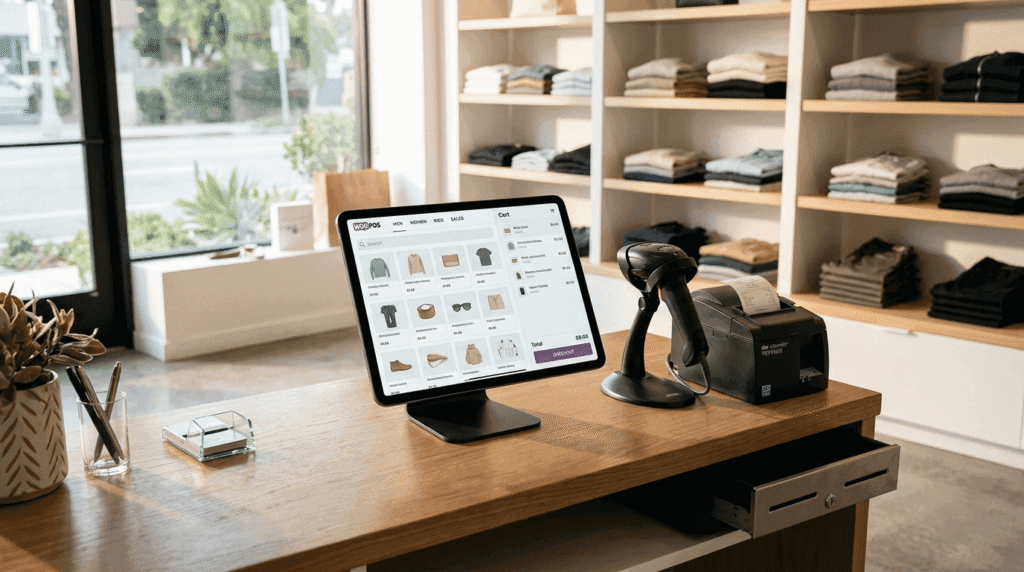
A WooCommerce POS system is a plugin or add-on that turns your existing WooCommerce store into a checkout screen you can use in a physical location. Instead of building a second product catalog for your shop, the POS plugin reads directly from the products, prices, and categories you already have in WordPress.
At a basic level, a point of sale system is the combination of hardware and software a business uses to accept payment and record a sale, whether that sale happens online or at a counter, as the U.S. Chamber of Commerce explains in its overview of POS technology (nofollow). A WooCommerce POS system applies that same idea to a WordPress-based store: one product database, one order history, and one inventory count shared between your website and your till.
For a small retail business, this matters for a simple reason. If your online store and your physical counter run on separate systems, you end up updating stock twice, running two sets of sales reports, and risking a sale on one channel that the other channel does not know about. A WooCommerce POS plugin removes that duplication by keeping both channels on the same WooCommerce backend.
Signs Your Retail Business Has Outgrown Manual Checkout
Not every shop needs a POS system on day one. A few signs suggest it is time to look at one:
- You are recording in-store sales in a notebook, a spreadsheet, or a separate till, and then updating your WooCommerce stock by hand afterward.
- You have opened, or plan to open, more than one physical outlet, counter, or pop-up stall.
- You are getting stock mismatches between what your website shows as available and what is actually on the shelf.
- Your cashiers need to look up prices manually because products are not barcoded or searchable at the counter.
- You want sales reports that combine online and offline revenue in one place, rather than merging two spreadsheets by hand.
If two or more of these describe your shop, a WooCommerce POS system is worth evaluating properly rather than continuing to patch the gap with manual work.
Key Factors to Consider When WooCommerce POS Buying
1. Native WooCommerce and HPOS Compatibility
The plugin should work directly with your existing WooCommerce product catalog, not require you to re-enter products into a separate system. It should also support High-Performance Order Storage (HPOS), the newer WooCommerce order storage method, since older POS plugins built only for the legacy order tables can run into compatibility issues as WooCommerce updates.
2. Multi-Outlet and Multi-Counter Support
If you run, or plan to run, more than one physical location, check whether the WooCommerce POS system can manage multiple outlets and counters from one WordPress install. Look specifically at whether you can:
- Assign different cashiers or managers to each outlet
- Apply different tax rates by outlet location
- View sales broken down by outlet, not just as one combined total
A single-outlet shop can get by without this, but retrofitting multi-outlet support later, after staff are already trained on a single-location workflow, is more disruptive than planning for it up front.
3. Real Stock Sync Between Online and In-Store Sales
This is the single most common complaint from retailers who run WooCommerce alongside a physical counter: stock drifts out of sync. A sale in the shop should immediately reduce the stock count shown on the website, and a sale online should immediately reduce what is available at the counter. Ask specifically how the POS plugin handles:
- Stock deduction timing (at checkout, not at a delayed sync)
- Transfers between outlets, if you run more than one
- What happens when two channels try to sell the last unit of the same product at the same time
4. Payment Method Flexibility
A retail counter needs more payment flexibility than a typical online checkout. Confirm the plugin supports the payment methods your customers actually use locally — cash, cards through a terminal, mobile wallets, or bank transfer — and whether it supports split payments, where a customer pays part in cash and part by card in the same transaction.
5. Hardware Compatibility
Before buying, confirm the plugin works with the hardware you already own or plan to buy: barcode scanners, receipt printers (commonly 80mm thermal paper), cash drawers, and card terminals. Some plugins are hardware-agnostic and work through a browser; others are tied to specific certified devices. If your budget does not allow for a barcode scanner immediately, check whether the plugin can scan barcodes using a phone or tablet camera as a fallback.
6. Offline Mode
Internet connections drop, especially at market stalls, pop-up locations, or during a local outage. A WooCommerce POS system that can keep taking orders offline and sync them once the connection returns protects you from losing sales during downtime. If your shop is in an area with unreliable connectivity, treat this as a non-negotiable feature rather than a nice-to-have.
7. User Roles and Access Control
As you add cashiers, you will want to control what each person can do — process a sale, apply a discount, issue a refund, or view reports. Check whether the plugin lets you assign specific permissions per staff role, and whether it can import roles you have already set up in WordPress rather than making you rebuild them from scratch.
8. Reporting Depth
Basic sales totals are not enough once you have more than a handful of products or more than one cashier. Look for reporting that covers:
- Daily and end-of-day (EOD) sales, ideally with a cash reconciliation total
- Sales by product, category, and staff member
- Combined online and in-store revenue in one report
9. Customer-Facing Display
A screen that shows the customer their cart, any applied discount, and the total due reduces disputes at checkout and is a small but noticeable improvement to the customer experience in a retail setting.
10. Pricing Model: One-Time vs. Subscription
WooCommerce POS plugins are typically sold either as a recurring subscription or as a one-time license (sometimes with an optional yearly renewal for support and updates). For a small retailer watching monthly costs, a one-time license with clearly stated renewal terms is often easier to budget for than an open-ended monthly subscription. Read the pricing page carefully to understand what happens after year one — whether the plugin keeps working, and what you lose if you do not renew support.
11. Support and Documentation
Check whether the vendor offers direct support (ticket-based or live chat) for paid plans, and whether free-tier users are limited to a community forum. Also look for a documentation site or knowledge base you can search before opening a support ticket — this matters more than it seems once your cashiers are actively using the system daily.

Retail Mode vs. Restaurant Mode: Make Sure You Pick the Right One
Some POS plugins, including several built for WooCommerce, are dual-purpose: they support both a straightforward retail or grocery checkout and a restaurant workflow with tables, waiters, and a kitchen panel. If you run a retail shop rather than a food-service business, you generally do not need the restaurant-specific tools (table management, kitchen tickets, waiter coordination). It is still worth checking that the plugin’s retail or grocery mode is a fully built-out option on its own, rather than an afterthought bolted onto a restaurant-first product, since some POS plugins are clearly optimized for one vertical over the other.
Common Mistakes Retailers Make When Choosing a POS System
Buying based on price alone. A cheaper plugin that lacks stock sync or offline mode can cost more in staff time and lost sales than a slightly pricier option that covers your actual workflow.
Not checking outlet limits before scaling. Some plans cap the number of outlets or sites. If you plan to open a second location within the year, confirm the licensing terms now rather than after you have already trained staff on a plan that will not scale.
Ignoring hardware compatibility until after purchase. Confirm your barcode scanner, receipt printer, and cash drawer are compatible before buying a license, not after.
Skipping a real trial run. Reading a feature list is not the same as running a shift on the system. Where a free or trial version exists, use it for at least a few real transactions, including a return or refund, before committing to a paid plan.
Underestimating staff training time. Even an intuitive POS system needs a short training session for cashiers, particularly around discounts, refunds, and split payments. Budget time for this before your first live day on the new system.
Step-by-Step: How to Evaluate a WooCommerce POS System Before You Buy
- List your must-have features based on the factors above — multi-outlet support, offline mode, specific payment methods, and so on — before you start comparing plugins, so you are not swayed by features you do not actually need.
- Check compatibility with your current WordPress and WooCommerce version, your theme, and any inventory or accounting plugins you already run.
- Install the free or trial version if one is available, and use it with real (or test) products from your own catalog.
- Run a full mock transaction, including a split payment and a return, to see how the plugin handles edge cases, not just a straightforward sale.
- Test with your actual hardware — scanner, printer, and cash drawer — rather than assuming compatibility from a spec sheet.
- Review the refund and upgrade policy in writing before purchasing a paid license, in case the plan does not fit once you are using it daily.
- Confirm support channels available at your plan level, and how quickly the vendor typically responds.
How VitePOS Fits Small Retail Businesses
VitePOS is a WooCommerce POS plugin built by Appsbd that installs directly into an existing WordPress and WooCommerce store. It reads from your current product catalog rather than requiring a separate one, and it is built as a single-page application on the WooCommerce REST API, which is intended to make product and customer lookups faster than a page-reload-based interface.
For a retail business specifically, VitePOS includes a dedicated Grocery/Retail store mode, alongside separate restaurant modes for food-service businesses that need them. On the retail side, the plugin covers the core factors outlined earlier in this guide:
- Multi-outlet and counter management, with the ability to assign cashiers to specific outlets and apply outlet-based tax rules, detailed on the features page.
- Full stock management, including outlet-wise stock, stock transfer requests between locations, and a price update list for when purchase prices change. Retailers dealing with stock accuracy issues between their website and shop floor may also find the site’s article on stopping stock mismatch in a WooCommerce store useful background reading.
- Barcode scanning, through a connected scanner or a mobile device’s camera, along with a barcode generator for printing your own codes with price and shop branding.
- Offline order processing, so a shop with an unreliable connection can keep selling and sync once back online.
- Multiple payment options, including standard WooCommerce payment gateways, Stripe, Stripe Terminal, Wallee Terminal payments, split payments, and custom payment methods for cases like bank transfers.
- A customer-facing display, showing the cart, applied discounts, and the total due.
- Role-based access control, including the ability to import existing WordPress user roles.
- Reporting, including daily sales, product and staff performance, and an end-of-day report for cash reconciliation.
None of this means VitePOS is the only option worth considering, and a shop with very specific requirements should still run through the evaluation steps above with any plugin, including this one. But for a small retail business that wants a checkout system built on the WooCommerce catalog it already has, rather than a separate platform, it is a plugin worth including on a shortlist.

VitePOS Pricing: Lite vs. Pro at a Glance
VitePOS is distributed in two versions: a free Lite plugin listed on WordPress.org, and a paid Pro upgrade sold as a one-time license per year or lifetime term. The table below summarizes the current plans as listed on the official pricing page:
| Plan | Sites | Price |
|---|---|---|
| Lite | Unlimited | Free |
| Pro – Single, Yearly | 1 site | $79/year (listed at $149) |
| Pro – Developer, Yearly | 5 sites | $149/year (listed at $299) |
| Pro – Single, Lifetime | 1 site | $299 one-time (listed at $359) |
| Pro – Developer, Lifetime | 5 sites | $499 one-time (listed at $599) |
Vitepos Lite covers a working checkout, outlet and counter management, barcode scanning, and basic cash drawer handling — often enough for a single-counter retail shop. Pro adds multi-outlet stock transfer, deeper reporting, additional payment terminals, and priority support, which matter more once you run more than one outlet or want detailed reconciliation reports. For a full feature-by-feature breakdown, the site’s Vitepos Lite vs Pro comparison goes through each difference in more detail than fits in a single buying guide. Retailers weighing WooCommerce-based POS options against hosted platforms may also find the comparisons against Shopify POS and Square POS useful for understanding how a WordPress-based POS differs from a hosted one.
Pricing and any active promotions should always be confirmed on the official pricing page before purchase, since vendors update these figures periodically.
Add-Ons Worth Knowing About
If loyalty and repeat purchases matter to your retail business, it is worth knowing that VitePOS has two companion add-ons built by the same developer: Vite Coupon, for advanced coupon and voucher rules, and Vite Rewards, for points-based customer loyalty programs. Neither is required to run a basic POS checkout, but both are designed to work with the same outlet and customer data VitePOS already manages, which avoids having to reconcile a separate loyalty system against your POS reports.
Additional Tips Before You Commit
- Ask your prospective vendor directly about their refund window and upgrade policy in writing, not just what is stated in marketing copy.
- If you are migrating from another till system, export your existing sales history and customer list before switching, so you keep historical records even if the new system does not import them automatically.
- Set a specific pilot period — for example, one to two weeks on a single counter — before rolling a new POS system out across every outlet at once.
- Keep a manual backup process (a simple paper log) ready for your first few live days, in case of an unexpected technical issue during the transition.
Frequently Asked Questions
It depends on the plugin. Some WooCommerce POS systems, including VitePOS, support offline order processing, which lets you keep selling during a connection drop and syncs the data once the connection returns. Confirm this specifically before buying if your location has unreliable internet.
Most WooCommerce POS plugins built for growing retailers support multiple outlets, but the depth of that support varies — some only let you separate sales by location, while others also support stock transfers between outlets and outlet-specific tax rules. Check this against your actual expansion plans, not just your current setup.
Not necessarily. Many WooCommerce POS plugins run through a standard browser on a laptop, tablet, or phone, and can use a device’s built-in camera for barcode scanning if you do not have a dedicated scanner. A receipt printer and cash drawer are common additions but are not always required to process a sale.
Free versions typically cover a working single-location checkout, basic product and customer management, and barcode scanning. Paid versions commonly add multi-outlet stock transfer, advanced reporting, additional payment terminal integrations, and direct vendor support instead of a community forum.
Installation itself is usually quick, similar to installing any WordPress plugin, often under an hour for a single counter using an existing product catalog. Full readiness—including staff training, hardware testing, and a trial transaction run — typically takes longer, so plan for at least a few days before a full live rollout.
A properly built WooCommerce POS plugin reads from your existing WooCommerce catalog rather than replacing it, so your online store continues to run as before. The main change is that in-store sales now update the same stock and order records your website already uses.
Conclusion
A WooCommerce POS system is worth adopting once manual stock updates, separate sales records, or a growing number of outlets start creating real friction in your retail business. The right choice depends less on brand name and more on whether the plugin covers your specific list of must-haves: stock sync, offline mode, the payment methods your customers use, and reporting that actually helps you close out a day. Work through the evaluation steps in this guide with any plugin you are considering, including VitePOS, and confirm the details directly on the vendor’s pricing and documentation pages before you commit.
Subscribe
To get news about new releases, Updates, Blog Post, Deals and Discounts
Like this content? Want to share it with others
Vitepos Related Plugins

Vite Coupon
Vite Coupon is a comprehensive coupon management system designed to simplify the creation, distribution, and tracking of discount coupons for online businesses. This plugin integrates seamlessly with various e-commerce platforms, offering a user-friendly interface and robust features to enhance promotional strategies.

Vitepos User & Kiosk App
Vitepos User App is an addon that lets customers place orders directly, making shopping and dining faster and more convenient. Guests can scan a table QR code to view menus and order instantly, with orders processed by the Vitepos Core App for smooth workflow. It also supports kiosk devices, enabling self‑service stations for quicker service.

Vite Rewards
Vite Rewards is a comprehensive loyalty points plugin designed to incentivize customer engagement and boost sales on your WooCommerce store. With a wide range of features, ViteRewards allows you to reward customers for various actions and interactions, creating a more engaging shopping experience.

Mini Cart Drawer
It is a compact and user-friendly shopping cart solution that enhances the shopping experience by allowing customers to view and manage their cart directly from any page without navigating away. It integrates seamlessly with your website, improving convenience and boosting conversions.