
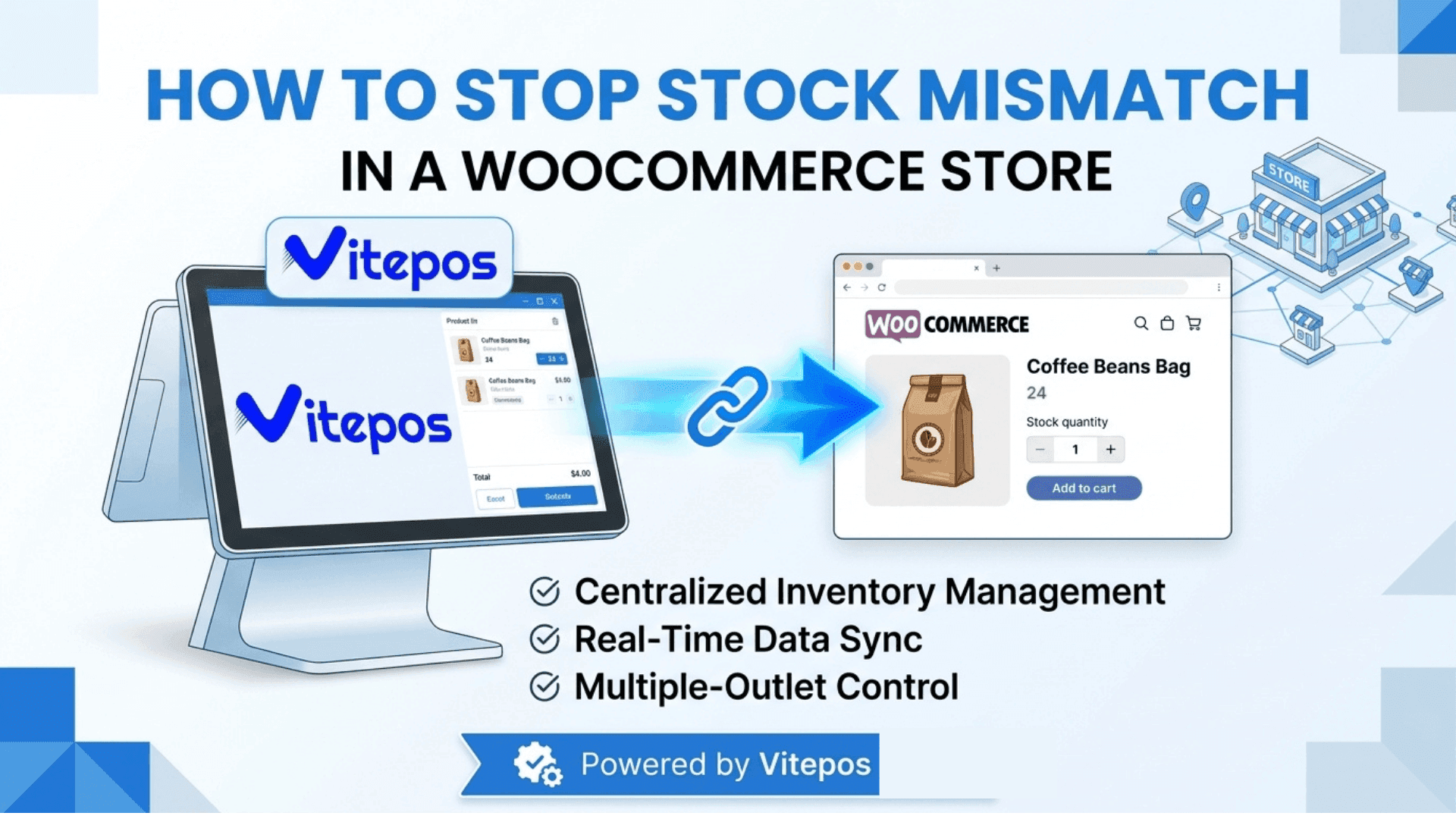
How to Stop Stock Mismatch in a WooCommerce Store
Written by Towhid Islam. Posted in POS, WooCommerce, WordPress
Stock Mismatch in WooCommerce is a common problem for store owners who sell both online and in person. You may open your WooCommerce dashboard and find a stock number that does not match what is actually on your shelf. A product shows fifteen units in stock, but a quick count in the store turns up only nine. Or worse, a customer orders something online that already sold out at the counter an hour earlier. This stock mismatch can lead to overselling, inaccurate inventory, frustrated customers, and operational problems.
Stock mismatch is not usually caused by one big failure. It is almost always a combination of small gaps: a sale that was not recorded in the right place, a setting that was never turned on, or two systems that update inventory on their own schedule instead of in real time. This article walks through what stock mismatch is, why it happens, how to diagnose it in your own store, and what you can do — including using a point-of-sale system like VitePOS — to keep your inventory numbers accurate.

What Stock Mismatch in WooCommerce Store Means
Stock mismatch happens when the inventory number recorded in WooCommerce does not reflect the actual quantity of a product you physically have. It can go in either direction:
- WooCommerce shows more stock than you actually have. This leads to overselling — a customer buys a product online that is not really available anymore.
- WooCommerce shows less stock than you actually have. This is less damaging financially, but it can cause a product to show as “out of stock” on your website when you could still be selling it, which quietly costs you sales.
For a single-channel online store, WooCommerce’s built-in stock management usually keeps counts accurate on its own, because every sale happens through the same system. The mismatch problem becomes much more common once a business adds a second sales channel — a physical counter, a market stall, a second location, or a separate point-of-sale tool that is not properly connected to WooCommerce.
Why Stock Mismatch Happens
There is rarely a single cause. In most WooCommerce stores, stock mismatch builds up from a combination of the following.
1. In-store sales are not recorded in WooCommerce
If a cashier sells a product at the counter using a manual register, a notebook, or an unconnected app, that sale never touches WooCommerce. The website continues to show the old stock number until someone manually updates it — if anyone remembers to.
2. Manual stock updates and human error
Typing stock numbers in by hand is one of the most common sources of stock discrepancy. A staff member miscounts, transposes a digit, or updates the wrong product variation. On a store with hundreds of SKUs, small manual errors add up quickly.
3. WooCommerce does not automatically add stock back in
By default, WooCommerce reduces inventory when an order is placed, but it does not automatically increase stock when new inventory arrives — that has to be entered manually unless a separate tool handles receiving. If a new shipment comes in and nobody updates the quantity, the system understates what you actually have.
4. Canceled, failed, or “held” orders
WooCommerce temporarily holds stock for a pending order for a set number of minutes so two customers cannot buy the last unit at the same time. According to WooCommerce’s own documentation, the Hold Stock (minutes) setting reserves stock for unpaid orders, and once that time limit passes, the pending order is canceled and the reserved stock is released back to available inventory. If that setting is misconfigured or left too long, stock can appear unavailable when it is not.
5. Product variations tracked incorrectly
A T-shirt in three sizes and four colors has up to twelve separate stock counts. If a staff member updates the stock for the parent product instead of the specific variation — or vice versa — the numbers stop matching reality.
6. Multiple outlets or warehouses sharing one stock number
If a business has two physical locations and one online store, but all three are pulling from a single WooCommerce stock count, a sale at Outlet A instantly (and sometimes incorrectly) reduces availability at Outlet B, even if Outlet B’s shelf has plenty of stock.
7. Plugin conflicts or delayed sync
Some inventory or POS plugins update stock through scheduled sync jobs rather than instantly. If two plugins are both trying to manage the same stock field, or a sync job runs only every few minutes, there is a window where the numbers do not line up.
8. Returns and exchanges handled outside the system
When a customer returns or exchanges an item at the counter and the transaction is not processed through the same system that manages stock, the returned item never gets added back to available inventory.
How to Diagnose Stock Mismatch in Your Store
Before fixing anything, it helps to confirm where the stock mismatch is actually coming from.
- Do a physical stock count. Pick a handful of your best-selling products and count them by hand. Compare that number to what WooCommerce shows.
- Check the order list for the same products. Look for pending, failed, or on-hold orders that might be reserving stock that was never actually paid for.
- Review your stock settings. Go to WooCommerce → Settings → Products → Inventory and check whether “Enable stock management” and “Hold Stock (minutes)” are configured the way you expect.
- Check product variations individually, not just the parent product, especially for clothing, footwear, or any item sold in multiple sizes or colors.
- Look for a second sales channel. Ask whether any staff have been selling in person, at a market, or through a channel that is not connected to WooCommerce.
- Check for recent plugin updates or conflicts, particularly if the mismatch appeared suddenly rather than gradually.
Practical Solutions Inside WooCommerce
Some stock mismatch problems can be reduced with WooCommerce’s own settings, before adding any other tool.
- Turn on stock management properly. Under WooCommerce → Settings → Products → Inventory, make sure “Enable stock management” is checked, and repeat this at the product level for each item.
- Set a sensible Hold Stock time. This determines how long an unpaid order reserves inventory before releasing it. Too short, and legitimate customers lose their cart; too long, and stock looks unavailable for no reason.
- Enable low-stock and out-of-stock email notifications so staff are alerted before a product actually runs out, rather than finding out from a customer complaint.
- Use the built-in stock log or a stock manager tool to track changes to a product’s quantity over time, so you can trace exactly when and why a number changed.
- Standardize who is allowed to edit stock manually, and require that any physical sale or return outside of WooCommerce is logged the same day.
These steps reduce the smaller, everyday causes of stock mismatch, but they only solve part of the problem for a store that sells in more than one place. If your business has a physical counter, multiple outlets, or in-person sales alongside your website, the core issue is usually that two separate systems are trying to track the same inventory without talking to each other in real time.

Product-Based Solution: Keeping Online and In-Store Stock in Sync
For a WooCommerce store that also sells in person, the most reliable fix for stock mismatch is a point-of-sale system that is built directly on top of WooCommerce, rather than a separate app that syncs occasionally. VitePOS is a WooCommerce point-of-sale plugin, and its core design addresses the sync gap that causes most stock mismatch problems.
A few relevant, verifiable parts of how VitePOS handles stock:
- WooCommerce Stock (Single Stock) mode. In this mode, every outlet using VitePOS draws from and updates the same WooCommerce stock number. When a product sells at any counter, the quantity is reduced in WooCommerce immediately, so the website and the till stay aligned without a manual update.
- Outlet-Wise Stock (Multi Stock) mode. For businesses with more than one physical location, VitePOS can track stock separately per outlet instead of sharing one global number. This is useful when Outlet A and Outlet B genuinely hold different physical inventory and should not affect each other’s availability.
- Stock Transfer and Stock Receive. When outlet-wise stock is enabled, products can be moved from one outlet to another inside VitePOS, and the receiving outlet has to accept or decline the transfer before the stock count updates — which creates a record of exactly where inventory moved.
- Online stock linked to a specific outlet. A store can choose which outlet’s stock powers its online orders, so online availability reflects a real physical location rather than a combined number that does not match any single counter.
- Full Stock (purchase) module. New inventory received from a vendor is logged through VitePOS’s purchase/stock module, along with the vendor and outlet involved, so restocking is recorded rather than typed into WooCommerce separately later. VitePOS’s documentation on how to add stock and managing purchases covers this process in detail.
None of this replaces good stock-taking habits, but it removes the main technical reason stock drifts out of sync in the first place: a sale happening in one place while the record lives somewhere else. VitePOS is available as a free Lite version with core inventory sync, and a Pro version that adds multi-outlet stock transfer and additional POS features — the features page lists the full set of stock and outlet tools available in each.
Step-by-Step: Setting Up Accurate Stock Tracking to Prevent Stock Mismatch
- Decide your stock model first. If you run one physical location and one website, WooCommerce Stock (Single Stock) mode is usually simpler. If you run more than one outlet, Outlet-Wise Stock is generally the better fit.
- Enable stock management in WooCommerce. Go to WooCommerce → Settings → Products → Inventory and turn on stock management before connecting any POS tool.
- Set up your outlets in VitePOS. Each outlet gets its own settings, and you can assign specific cashiers or managers to each one.
- Choose which outlet powers your online stock, if you are using outlet-wise stock. This tells WooCommerce which physical location’s inventory should be shown to online shoppers.
- Record every incoming shipment through the stock/purchase module rather than editing the WooCommerce quantity field directly, so the vendor, date, and outlet are all logged together.
- Train staff to process every sale through the same system, including returns, exchanges, and discounted or “give-away” items, so nothing bypasses the stock count.
- Run a weekly reconciliation. Compare a physical count of a sample of products against the system count. Small, regular checks catch drift before it becomes a large discrepancy. VitePOS’s daily sales reporting can help spot unusual stock movement early.
Common Mistakes That Cause Stock Mismatch
- Editing stock numbers directly in WooCommerce while also running a POS system that manages the same product — this creates two sources of truth instead of one.
- Leaving Hold Stock (minutes) unset or set too high, which can make products appear unavailable long after an order has actually failed or been abandoned.
- Not training every staff member on the correct process for sales, returns, and stock receiving. A single employee bypassing the system is enough to cause a mismatch.
- Mixing single-stock and outlet-wise stock settings without fully understanding which one is active, which can cause one outlet’s sale to wrongly reduce another outlet’s inventory.
- Ignoring product variations and only checking the parent product’s stock count.
- Waiting for a large audit instead of doing small, regular checks. Mismatches are far easier to fix when caught early.
When Professional or Technical Help May Be Required
Most stock mismatch problems can be resolved by adjusting settings and standardizing processes, as covered above. However, professional or developer help is worth considering if:
- Stock numbers are changing unexpectedly with no clear pattern, which can indicate a plugin conflict.
- You are migrating from another platform (such as Shopify or a standalone POS) and need historical stock data mapped correctly into WooCommerce.
- You run WooCommerce with High-Performance Order Storage (HPOS) enabled and a plugin you rely on has not confirmed compatibility with it.
- You need a custom stock rule — for example, splitting one WooCommerce product’s stock across many outlets with different reorder points — that goes beyond what any existing plugin setting supports out of the box.
In these cases, a WordPress or WooCommerce developer, or the support team of your POS plugin, can usually resolve the issue faster than continuing to troubleshoot manually.

Additional Tips to Prevent Stock Mismatch Long-Term
- Use barcode scanning at checkout instead of manual product search, which reduces the chance of the wrong item or variation being sold and recorded.
- Set low-stock thresholds per product so staff get a warning before an item runs out completely, rather than discovering it at the register.
- Keep a single point of stock entry. Whoever receives new inventory should be the one who enters it into the system, rather than multiple people updating numbers from memory later.
- Review outlet assignments periodically, especially after staff changes, to make sure the right people have access to the right locations.
- Reconcile after promotions or sales events, when order volume is higher and manual tracking is more likely to fall behind.
Frequently Asked Questions
This usually happens when sales are made outside WooCommerce (such as at a physical counter using a separate system), when stock is updated manually and inconsistently, or when returns and canceled orders are not processed through the same system that tracks inventory.
No. WooCommerce reduces stock automatically when an order is placed, but increasing stock after a new shipment arrives has to be done manually, or through a plugin or POS system that includes a dedicated stock-receiving process.
Single stock means all outlets and your website share one combined inventory number for each product. Outlet-wise stock means each physical location has its own separate count, and stock can be transferred between outlets when needed. The right choice depends on whether your locations genuinely hold separate physical inventory.
A POS system that updates WooCommerce stock in real time, like VitePOS, removes the main technical cause of overselling — a delay between an in-person sale and the online stock count. It cannot prevent overselling caused by staff bypassing the system or manual data entry errors, so process and training still matter.
For fast-moving products, a weekly spot-check on a sample of items is usually enough to catch problems early. A full store-wide stock count once a month or once a quarter is common practice for catching anything the weekly checks miss.
No, stock management itself is a lightweight WooCommerce feature. Performance issues are more commonly related to plugin conflicts or a large product catalog without proper caching, not the stock management setting itself.
Conclusion
Stock mismatch in a WooCommerce store is rarely caused by one single mistake — it is usually the result of sales, returns, and restocking happening in more than one place without a shared, real-time record. Fixing it starts with getting WooCommerce’s own inventory settings configured correctly, then closing the gap between your online store and any physical point of sale. For stores that sell both online and in person, connecting stock across every outlet through a tool like VitePOS removes the delay that causes most discrepancies, while regular manual checks catch anything a system alone cannot. Once every sale — online or in-store — updates the same stock count, “mismatch” stops being a recurring problem and becomes something you check for, not something you’re constantly correcting.