
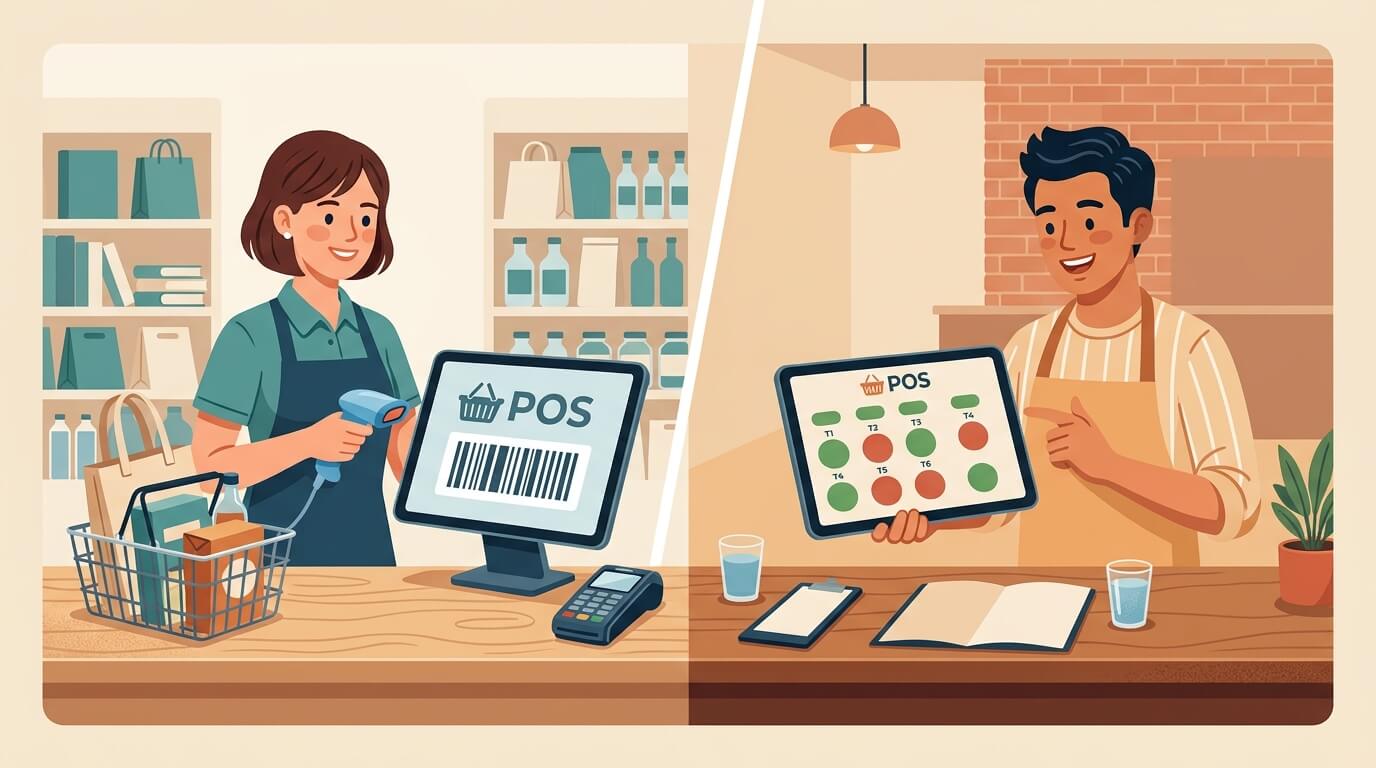
Choosing a point-of-sale system is not just a technical decision. It changes how your staff take orders, how fast your checkout line moves, and how accurately your inventory or table status is tracked during a busy shift. The comparison between retail POS vs restaurant POS comes up constantly among WooCommerce store owners, because the two setups solve different problems, even though they share the same basic job: taking a customer’s money in exchange for a product or a meal.
This article breaks down the practical differences between a retail POS system and a restaurant POS system, explains why picking the wrong one creates friction for staff and customers, and walks through how VitePOS — a point-of-sale plugin built for WooCommerce — lets a single store switch between retail and restaurant modes depending on how the business actually operates.
If you run a shop, a grocery store, a cafe, or a full-service restaurant and you are trying to work out which setup applies to you, this guide should give you a clear answer by the end.
What Is a Retail POS System?
A retail POS system is built around a simple transaction flow: a customer picks up items, brings them to a counter, and pays. The core jobs of a retail POS system are:
- Scanning or searching for a product quickly
- Updating stock the moment an item is sold
- Applying discounts, taxes, or loyalty pricing
- Printing or emailing a receipt
- Keeping online and in-store inventory in sync
Grocery stores, clothing shops, hardware stores, pharmacies, and general retail outlets all use this model. The emphasis is on speed at the counter and accurate stock counts, because a retail business can carry hundreds or thousands of SKUs that need to stay correctly tracked across an online store and one or more physical locations.

What Is a Restaurant POS System?
A restaurant POS system has to manage something a retail POS never deals with: a live order that moves through several stages before it is paid for. In a restaurant, a sale is not “scan and pay.” It usually looks like this:
- A customer sits at a table or places an order at a counter
- A waiter or cashier records the order
- The kitchen receives and prepares the order
- The item is served
- The customer pays, often after the food has already been delivered
A restaurant POS system needs to track table status, hold an order open while it is being prepared, let staff add or remove items from an order that is already in progress, and coordinate communication between the front of house and the kitchen. This is fundamentally a workflow problem, not just a checkout problem, which is why restaurant POS software looks and behaves differently from a straightforward retail POS system.

Retail POS vs Restaurant POS: Core Differences
The table below summarizes how a retail POS system and a restaurant POS system differ in day-to-day use.
| Aspect | Retail POS | Restaurant POS |
|---|---|---|
| Payment timing | Usually paid at the time of sale | Can be paid before (pay-first) or after (traditional dining) |
| Order lifecycle | Single-step: add to cart, checkout | Multi-step: order, prepare, serve, then pay |
| Staff roles involved | Mainly cashier | Waiter, kitchen staff, and cashier |
| Core focus | Speed and stock accuracy | Order coordination and table management |
| Typical extras | Barcode scanning, discounts, loyalty | Table management, kitchen display, item-wise interaction |
| Common business types | Grocery stores, clothing shops, pharmacies | Restaurants, cafes, fast food outlets |
This is the reason the question of retail POS vs restaurant POS matters before you install anything. A grocery store forced into a restaurant-style workflow would slow every transaction down with unnecessary steps. A restaurant forced into a retail-only checkout would lose the ability to hold an open order while food is being cooked.
Why the Right POS Mode Matters for Your Business
The Problem With a Mismatched POS Setup
When a business uses a POS system that does not match its actual operating model, a few predictable problems show up:
- Checkout bottlenecks. A restaurant using a pure retail checkout has no way to hold a table’s order open while the kitchen works on it, so staff end up managing orders on paper or in a separate system.
- Inventory errors. A retail shop using a system without proper stock sync risks overselling products that are already out of stock, especially when it also sells the same products online.
- Miscommunication between staff. In a restaurant, if the kitchen and the waiter are not working from the same order status, dishes get served late, orders get duplicated, or items get missed entirely.
- Poor customer experience. Slow checkout in a retail shop or confused table service in a restaurant both lead to the same outcome: customers notice, and it affects repeat business.
Why This Happens
Most of these issues trace back to one root cause: the POS software was designed for one type of business and is being stretched to cover another. A checkout tool built for scanning barcodes at a grocery counter does not naturally understand what a “table” or a “kitchen ticket” is. Likewise, a restaurant-first system that assumes every order goes through a waiter is unnecessarily complicated for a shop where customers simply want to pay and leave.
How to Diagnose Which POS Mode You Actually Need
Before comparing software, it helps to identify your own order flow. Ask the following:
- Does the customer pay before or after receiving the product? If payment always happens at the counter before the item changes hands, you are closer to a retail or pay-first restaurant model.
- Does your business involve seating and table service? If yes, you need table management and a kitchen communication feature, not just a checkout screen.
- How many people touch a single order? A retail sale usually involves one staff member. A restaurant order can involve a waiter, a kitchen team, and a cashier.
- Do you sell the same products online and in person? If so, real-time stock synchronization between your WooCommerce store and your physical counter becomes a priority regardless of which mode you choose.
- Do orders need to be modified after they are placed? Restaurants frequently need to add or remove items from an order that is already being prepared; most retail transactions do not.
If your answers point toward multi-step order handling and table service, you need restaurant-style POS features. If your answers point toward a single-step transaction with a strong focus on stock accuracy, a retail-style POS is the better fit.
Practical Solutions: Matching Features to Business Type
For a retail POS system, look for:
- Fast barcode scanning, including mobile camera scanning as a backup to a dedicated scanner
- Real-time inventory updates that sync with your online WooCommerce store
- Discount and tax handling based on outlet location
- Support for multiple outlets if you operate more than one shop
For a restaurant POS system, look for:
- Table creation and management, including seating capacity and parcel/takeaway options
- A kitchen-facing panel so the kitchen team can accept, prepare, or deny an order
- A waiter panel to place orders, book tables, and mark items as served
- The ability to add or remove items from an order that is already active
- A choice between pay-first (common in cafes and quick-service restaurants) and traditional service (common in sit-down restaurants)
This is exactly where a single plugin that supports both operating models becomes useful, instead of forcing a business to adopt two separate tools or work around a system that only fits half of its needs.
How VitePOS Handles Both Retail and Restaurant Operations
VitePOS is a point-of-sale plugin built to work directly with WooCommerce, connecting a physical counter to an existing online store without a third-party bridge or middleware. Rather than offering one fixed checkout flow, VitePOS includes a POS Mode setting with several operating modes, and only one mode is active at a time per outlet:
- Grocery / Retail Mode — built for shops that sell physical goods off the shelf, with fast barcode scanning, product search, and straightforward checkout.
- Restaurant (Pay First) — customers pay at the counter before their order is prepared, a common flow for cafes and quick-service restaurants.
- Restaurant (Traditional) — a waiter takes the order and sends it to the kitchen, the kitchen prepares it, and the cashier processes payment once the order has been served.
- Restaurant (Basic) — a simplified restaurant flow for businesses that need order tracking without the full waiter-kitchen-cashier chain.
Retail-Focused Features in VitePOS
For businesses running in Grocery/Retail mode, VitePOS includes barcode scanning by physical scanner or mobile camera, product search by ID or SKU, tax calculation based on outlet location, dynamic inventory updates, and a barcode generator for creating custom price and product labels. Stock can be managed per outlet or synced directly with the main WooCommerce stock, depending on how the business is structured. The full list of these tools is documented on the VitePOS features page.
Restaurant-Focused Features in VitePOS
When Restaurant mode is active, VitePOS adds a waiter panel, a kitchen panel, and a cashier panel that work together. The waiter can create an order, book a table, and send items to the kitchen. The kitchen panel lets staff accept an order and start preparing it, mark it ready to serve, or deny it with a reason if something cannot be fulfilled. Once an order is served, the cashier panel processes the payment and closes it out. VitePOS also supports item-wise interaction, meaning staff can add or remove items from an order that is already in progress, along with table management for creating, updating, and tracking tables, including whether an order is for dine-in or parcel/takeaway.
Shared Features Across Both Modes
Regardless of which POS mode is active, VitePOS includes features that apply to any business type: offline order processing that syncs once the internet connection returns, split or single payment methods, customer profiles pulled from WooCommerce, cash drawer management, role-based access control for staff like cashiers and managers, and customizable receipts and invoices. Businesses that want to understand the full WooCommerce POS workflow, including how online and in-store sales stay synced, can review the WooCommerce POS system overview for more detail.
Step-by-Step: Setting Up the Right POS Mode in VitePOS
- Install and activate the plugin. VitePOS Lite is available as a free plugin on WordPress.org, with a Pro version offering additional features like table management, split payments, and offline order syncing.
- Connect it to your WooCommerce store. VitePOS links directly to your existing product catalog, so there is no need to re-enter inventory.
- Create an outlet and a counter. Each physical location or checkout point is set up as an outlet, and each outlet can have its own counters and assigned staff.
- Choose your POS Mode. In the POS Mode settings, select Grocery, Restaurant (Pay First), Restaurant (Traditional), or Restaurant (Basic), based on how your business actually operates.
- Set up tax and pricing rules per outlet. Tax can be configured to apply automatically based on the outlet’s location, so staff do not need to calculate it manually on every order.
- Add users and assign roles. Create staff accounts for cashiers, waiters, kitchen staff, or managers, and control what each role can access using the built-in access control system.
- Configure receipts and printing. Customize the invoice or receipt layout, including branding, before going live at the counter.
- Run a test transaction. Process a sample sale (or a sample restaurant order, if using restaurant mode) to confirm inventory updates, tax calculation, and payment recording all work as expected before opening to customers.
Common Mistakes to Avoid
- Choosing a mode based on business name rather than actual workflow. A cafe that mostly does grab-and-go sales may fit retail or pay-first mode better than a full traditional restaurant setup, regardless of what the business calls itself.
- Ignoring stock sync between online and offline sales. If a business sells the same products through its WooCommerce store and in person, failing to link stock properly can lead to overselling.
- Skipping staff role setup. Giving every staff member full access, instead of setting role-based permissions, increases the risk of accidental changes to pricing, discounts, or stock.
- Not testing offline behavior. If a location has unreliable internet, it is worth confirming that offline order handling and syncing work correctly before relying on it during a busy shift.
- Overcomplicating a simple retail flow with restaurant-only features, which adds unnecessary steps for staff and slows down checkout.
Additional Tips for Retail and Restaurant Businesses
- Review your POS mode selection periodically, especially if your business changes — for example, a grocery store that adds a small cafe counter may need to reconsider its setup.
- Use outlet-based tax settings if you operate in more than one location with different tax rules.
- Take advantage of role-based access control early, rather than adding it after staff turnover creates a mess of permissions.
- For restaurants, make use of the kitchen and waiter panels together rather than relying on verbal communication alone, since it reduces the chance of missed or duplicated orders.
- Keep receipt and invoice branding consistent with your store, since a well-formatted receipt is one of the simplest ways to reinforce a professional impression at checkout.
WooCommerce’s own point-of-sale documentation describes a similar underlying goal: keeping orders and inventory connected through one system rather than juggling separate online and offline tools. That principle applies whether a business ends up choosing a retail or a restaurant POS mode.

Real-World Examples: Matching Mode to Business Type
Seeing how the choice plays out in practice makes the retail POS vs restaurant POS decision easier to apply to your own business.
A neighborhood grocery store. Customers walk in, pick up packaged goods and fresh produce, and check out in a single step. Grocery/Retail mode fits here, with barcode scanning and dynamic stock updates doing most of the work. Because the same products are often listed on the store’s WooCommerce site for delivery orders, keeping online and in-store inventory synchronized matters as much as the speed of the checkout itself.
A coffee shop or quick-service cafe. Customers order at the counter and pay immediately, then wait for their drink or food to be prepared. This is the classic use case for Restaurant (Pay First) mode. The order still needs to reach the person preparing it, but payment happens up front rather than after the item is served.
A sit-down restaurant. A host seats the customer, a waiter takes the order at the table, the kitchen prepares it, and the bill is settled once the meal is finished. This is where Restaurant (Traditional) mode applies, using the waiter panel, kitchen panel, and cashier panel together so every stage of the order is tracked.
A small food stall with a simpler process. Some food businesses take an order and prepare it without needing full table management or a formal waiter-kitchen-cashier chain. Restaurant (Basic) mode offers a lighter alternative for this kind of setup, without the overhead of features the business does not use.
A hybrid shop with a small food counter. A retail store that also sells prepared snacks or drinks from a small counter does not always fit neatly into one category. In this situation, it can help to treat the retail side and the food counter as different outlets within the same WooCommerce POS setup, each configured with the POS mode that matches how that part of the business actually operates.
A retail POS is built for single-step transactions: scan, pay, and print a receipt. A restaurant POS manages a multi-step order that moves from waiter to kitchen to cashier, often with payment happening before or after the food is served rather than exactly when the order is placed.
Yes, some POS plugins, including VitePOS, offer separate POS modes so the same underlying software can be configured for either a retail/grocery workflow or a restaurant workflow, including pay-first and traditional dining setups.
It depends on how the cafe operates. A cafe where customers order and pay at the counter before their drink is made typically fits Restaurant (Pay First) mode. A cafe with table service and a kitchen preparing food fits Restaurant (Traditional) mode better.
It is not strictly required, but a kitchen panel makes order coordination significantly easier, since it lets kitchen staff accept, prepare, or deny orders directly instead of relying on printed tickets or verbal communication.
If you plan to sell in person as well as online, a WooCommerce POS plugin keeps inventory synced between both channels, which prevents overselling and reduces manual stock updates.
In VitePOS, the POS Mode setting can be changed if a business’s operating model changes, such as a retail shop adding food service, though it is worth reviewing outlet and menu setup after switching to make sure everything still lines up correctly.
Conclusion
The debate over retail POS vs restaurant POS is not about which system is better in general. It is about which workflow matches how your business actually serves customers. A retail POS system is built for fast, single-step transactions and accurate stock tracking. A restaurant POS system is built to manage an order as it moves through several people and several stages before payment happens.
For WooCommerce store owners who are not sure which category they fall into, or who run a business that blends both — a grocery store with a small food counter, for example — a plugin like VitePOS offers a practical middle ground: one WooCommerce-native tool with distinct modes for grocery, pay-first restaurant service, and traditional table service, so the setup can match the business instead of the other way around.
Subscribe
To get news about new releases, Updates, Blog Post, Deals and Discounts
Like this content? Want to share it with others
Vitepos Related Plugins

Vite Coupon
Vite Coupon is a comprehensive coupon management system designed to simplify the creation, distribution, and tracking of discount coupons for online businesses. This plugin integrates seamlessly with various e-commerce platforms, offering a user-friendly interface and robust features to enhance promotional strategies.

Vitepos User & Kiosk App
Vitepos User App is an addon that lets customers place orders directly, making shopping and dining faster and more convenient. Guests can scan a table QR code to view menus and order instantly, with orders processed by the Vitepos Core App for smooth workflow. It also supports kiosk devices, enabling self‑service stations for quicker service.

Vite Rewards
Vite Rewards is a comprehensive loyalty points plugin designed to incentivize customer engagement and boost sales on your WooCommerce store. With a wide range of features, ViteRewards allows you to reward customers for various actions and interactions, creating a more engaging shopping experience.

Mini Cart Drawer
It is a compact and user-friendly shopping cart solution that enhances the shopping experience by allowing customers to view and manage their cart directly from any page without navigating away. It integrates seamlessly with your website, improving convenience and boosting conversions.

