
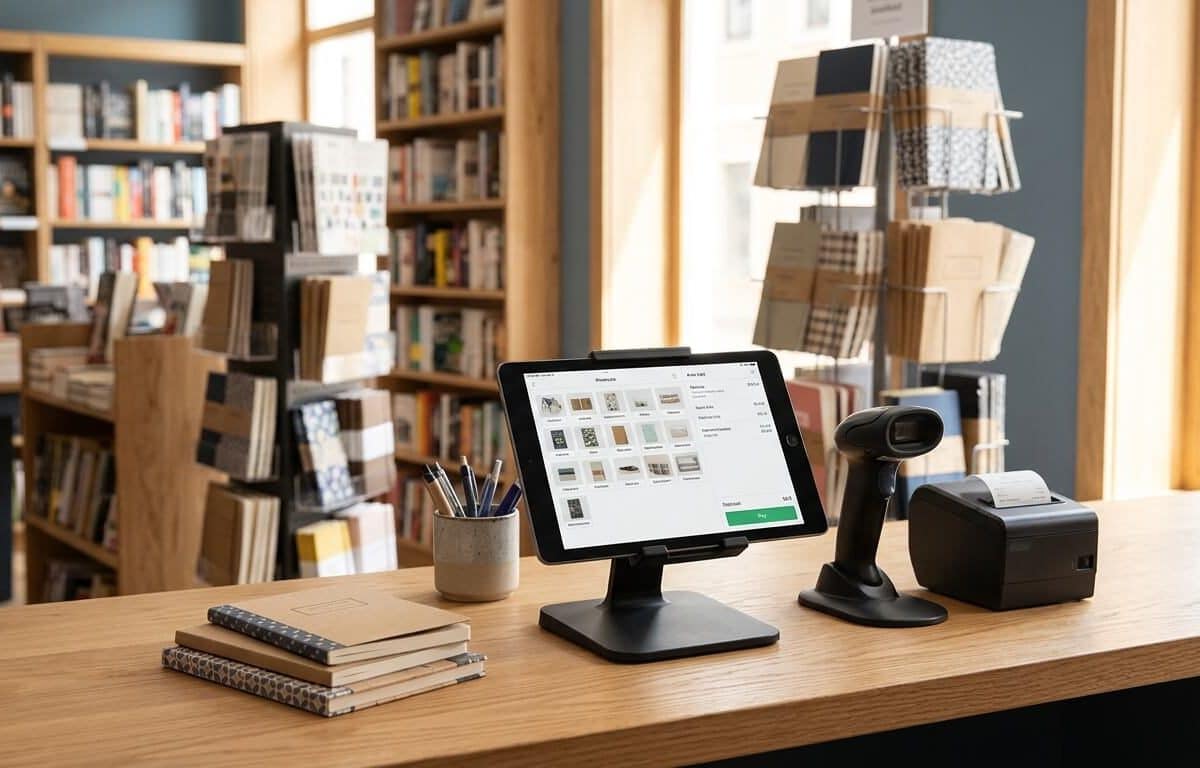
Vitepos for Bookshop or Stationery Store
Written by Ferdous Hassan. Posted in WordPress, POS, WooCommerce
Introduction
A small bookshop or stationery store looks simple from the street. Inside, the work is not. A bookshop can hold thousands of titles that each sell a few copies a year. A stationery store can hold hundreds of low-priced items such as pens, refills, files, markers and art supplies, and many of them sell in bulk during the school season. Both stores need accurate prices, quick billing and a clear view of what is on the shelf.
This guide explains how bookshop POS software helps with those jobs and how to choose one. It also looks at Vitepos, a point of sale plugin for WooCommerce, and how its documented features apply to a book or stationery business. The article is written for shop owners, managers and web developers who set up stores for them.
One point should be clear from the start. Vitepos is a WooCommerce plugin. It needs a WordPress site with WooCommerce installed. If you do not use WooCommerce and do not plan to, you should compare other types of software before deciding. If you already sell online with WooCommerce, or want a physical shop and an online shop to share one product list, the sections below will help you judge whether it fits.
What Is Bookshop POS Software?
POS stands for point of sale. It is the place and the system where a sale is completed. Bookshop POS software is the program on your counter that lets a cashier find a product, add it to a bill, take payment, print a receipt and reduce the stock count.
A basic cash register only records the amount. A POS system records which product was sold, at what price, to whom and by which cashier. That record is what makes other work possible, such as reordering, end-of-day reports and checking for missing stock.
For a bookshop or stationery store, a good bookshop POS software setup usually covers:
- Product records with title, price, stock quantity and barcode
- Fast billing by barcode scan or product search
- Discounts, notes and several payment methods on one bill
- Printed or digital receipts
- Stock changes after every sale
- Reports by day, product and cashier
- User roles, so a part-time cashier cannot change prices
If a store also sells online, the system should keep the shelf stock and the website stock in agreement. This is where a WooCommerce-based system has a practical advantage, because the products already live in one place.
How Bookshops and Stationery Stores Differ From Other Retail
General retail advice does not always fit these two store types. The table below lists the differences that affect software choice.
Store feature | Bookshop | Stationery store | What the POS needs to handle |
|---|---|---|---|
Number of products | Many titles, few copies each | Many items, often sold in volume | Fast search and barcode scanning |
Price changes | Cover prices are fixed by the publisher, but discounts are common | Supplier prices change often | Easy price update and clear discount entry |
Seasonality | Exam and course-book periods, gift seasons | Back-to-school and office supply cycles | Stock reports before peak periods |
Barcodes | Books usually carry a printed barcode | Many small items have none | Barcode scanning and a barcode generator for unlabelled items |
Customers | Regulars, students, institutions | Students, offices, schools | Customer records and flexible payment |
Online sales | Often sold to out-of-town buyers | Bulk orders for schools or offices | One shared product list for shop and website |
Two points in this table need extra explanation.
First, books are identified by an ISBN. Since 2007, the standard ISBN has 13 digits, and the number is normally printed as a barcode on the cover. You can read the standard and its history on the International ISBN Agency website. This makes barcode scanning very useful in a bookshop, because the cashier can scan instead of typing a title.
Second, many stationery items have no usable barcode. Loose pens, single notebooks from a local supplier and handmade items often arrive with no label. A store that wants fast scanning has to create its own barcode labels for these items.
The Problem: Running a Book or Stationery Shop Without a POS
Many small shops start with a paper bill book, a calculator and a notebook for stock. That works at first. It becomes a problem when the shop grows. This section describes the problem using the same structure that a repair guide would use: what it is, why it happens, what causes it and how to check for it.
What the problem is
The shop cannot answer basic questions quickly. How many copies of a title are left? Which notebook sold best last month? Did the cash drawer match the sales? How much did we make after discounts?
Why it happens
Paper records and memory work only while the number of products and sales is small. Once a shop has a few hundred items and more than one person at the counter, mistakes are normal. Nobody is careless. The system is too thin for the volume.
Common causes
- Manual price entry. Cashiers type prices from memory or read them from stickers, which can be old.
- No link between sale and stock. A sale is written on a bill, but the stock register is updated later, or never.
- Several people using one register. Without separate logins, nobody can tell who made an error.
- Stock counted rarely. Shortages show up only when a customer asks for a book that is not there.
- Separate online and shop inventory. If the website and the shop each keep their own count, the same last copy can be sold twice.
How to diagnose it
You can check your own shop in an afternoon:
- Pick ten products at random and count them on the shelf.
- Compare each count with your records.
- Note how many are wrong and by how much.
- Add up one day of paper bills and compare the total with the cash and card payments received.
- Ask each cashier how they price an item that has no sticker.
If more than a few of the ten counts are wrong, or the daily totals differ without a clear reason, a POS system will help. The size of the gap tells you how much to prioritise stock tracking compared with billing speed.
What to Look for in Bookshop POS Software
Before you choose any product, write down your requirements. The checklist below is based on how book and stationery stores work.
1. Barcode scanning
The software should accept a handheld scanner. It is also useful if a phone camera can scan, because it saves buying extra hardware for a small counter.
2. A barcode generator
For stationery items without labels, you need to print your own barcodes. Check whether the software can generate and print them, and whether you can set label sizes.
3. Stock control that updates with every sale
Every bill should reduce stock automatically. If you have more than one outlet or a store room, check that stock can be moved between locations.
4. Flexible payment
Books and stationery are often bought by students, parents and offices. Some pay in cash, some by card, and some split a bill between methods. A system that cannot split a payment will slow the counter.
5. Receipts you can adjust
A receipt should show your shop name and a footer message. Many shops use 80 mm thermal paper rolls, so confirm that your printer and paper size work.
6. User roles
A cashier needs to bill. A manager needs to change prices and see reports. A POS should let you separate these permissions.
7. Offline operation
Internet connections drop. If the shop cannot bill during an outage, you lose sales on the busiest days. Check how the system behaves without a connection and how it syncs afterwards.
8. Online and shop stock in one place
If you sell online, or may in future, choose software that does not create a second product list.
9. Language and display support
If your cashiers or customers use a language other than English, check that the interface can be changed, including right-to-left languages if needed

How Vitepos Works as Bookshop POS Software
Vitepos is a point of sale plugin for WooCommerce, made by Appsbd. It adds a POS panel to your WordPress dashboard. Orders taken at the counter are stored in WooCommerce with full order details, according to the plugin’s listing on WordPress.org. The list below covers the features that matter most for a book or stationery store. Each feature is described as the Vitepos website and plugin listing describe it.
One product list for the shop and the website
Vitepos uses WooCommerce products. You do not need to build a second catalogue for the counter. The Vitepos website states that online orders appear in the Vitepos online order list, and that you can change their status from the POS. It also says the stock of a chosen outlet can serve as the inventory for online orders.
For a bookshop that sells to out-of-town buyers, this means one stock count for both channels. For a stationery store that takes bulk orders from schools or offices through its website, it means those orders can be handled from the same screen as counter sales.
Barcode scanning and barcode generation
The plugin listing says Vitepos supports scanning with a barcode device or a mobile camera, and that it includes a barcode generator. The Vitepos site adds that on a mobile device the built-in camera can scan, so a separate scanner device is not required.
This fits both store types:
- Books. Scan the printed barcode on the cover to add the book to the bill.
- Stationery. Generate and print barcodes for unlabelled items such as loose pens or refills, then stick them on the shelf or the packet.
The features page also lists custom barcode page settings, including a choice between barcode or QR code, page size, margins, font size and page breaks. Those settings matter when you print labels on a sheet or roll with a specific size.
One point to check before you import your catalogue: WooCommerce has its own field for GTIN, UPC, EAN or ISBN. Whether Vitepos can read that field as its barcode source is a question that appears in the plugin’s support forum. Check the Vitepos documentation or ask support before you load thousands of ISBNs, so you enter them in the field the POS will search.
Stock management
The Vitepos site describes a stock module where an admin can manage product stock, record purchases from vendors, transfer stock between outlets, and accept or reject transfers from other outlets. It also describes a price update list: when a purchase price changes, you can mark the product for a sale price update and review the list in the purchase module.
For a stationery store, the price update list is useful because supplier prices change often. For a bookshop with a store room or a second branch, stock transfer helps you move slow-selling titles to where they are more likely to sell.
The plugin listing also mentions dynamic inventory sync, which is meant to reduce overselling by updating inventory in real time.
Checkout
According to the Vitepos site, a cashier can hold a cart, add a discount or fee, add an order note, search or add a customer, and take split payments. Holding a cart is a practical feature in a school-season rush. A cashier can pause one customer’s bill, serve another and return to the first.
The same page says Vitepos supports WooCommerce payment methods, Stripe and Wallee terminal payments, and custom payment methods for manual cases such as bank transfers or offline settlements. If a customer wants to pay part in cash and part by card, the split payment option records both on one order.
The site also lists a customer view display, so the buyer can see the items and the total during billing. This reduces disputes at the counter.
Receipts and printers
The Vitepos FAQ says you can customise the receipt, add a brand logo and set a footer greeting. It also says Vitepos works with printers that your device and browser support, and that it handles common receipt paper sizes including 80 mm thermal rolls. If printing fails, the FAQ advises checking the printer connection, updating the printer driver and reading the printer vendor’s documentation.
Offline orders
The site states that Vitepos can store data locally and take orders without an internet connection, then sync with the server when the connection returns. This is relevant to shops in areas with unstable internet. Test this feature in your own shop before you rely on it, as described in the setup steps below.
Roles and multiple outlets
Vitepos includes a role-based access panel, and the site says you can control individual operations through it. It also says you can create unlimited outlets and counters and assign managers or cashiers to each one. A bookshop with a branch near a college, or a stationery store with a separate wholesale counter, can use this to keep records apart.
Add-ons that may help
The Vitepos site lists optional add-ons. Two may suit these store types:
- Vite Rewards for a customer loyalty programme, which could suit a bookshop with regular readers.
- Vite Coupon & Voucher for coupons and gift vouchers, which could suit a gift-season sale.
There is also a User & Kiosk App. You can view the full feature list on the Vitepos features page.

Is Vitepos the Right Fit? Requirements and Limits
A fair guide should include the limits. These points come from the Vitepos site and its user reviews.
- It needs WordPress and WooCommerce. The plugin does not run alone. One user review on the Vitepos homepage says this directly, noting that a domain and WooCommerce are required. If you have no website, you will need to set one up first.
- It has no native Android or iOS app. The FAQ says you can create an app for Android and iOS using your mobile browser. In practice, you add the POS page to your phone’s home screen.
- Printing depends on your hardware. The FAQ says Vitepos supports printers that work with your device and browser. Test your exact printer model.
- Features vary by version. The site lists features for the plugin overall, and a free version is available on WordPress.org. Check the pricing page to see which features belong to which licence before you buy.
You can see the plans on the Vitepos pricing page. The site states a 30-day refund window, which gives you time to test the plugin with your real products. Read the refund policy itself for the exact terms.
A Step-by-Step Setup for a Bookshop or Stationery Store
The steps below are a practical order of work. They are general recommendations, not an official Vitepos installation guide. For exact menu names and settings, follow the Vitepos documentation.
Step 1: Prepare your WooCommerce store
Install WordPress and WooCommerce on a hosting plan that can handle your traffic. Keep WordPress, WooCommerce and your theme updated. The Vitepos homepage mentions support for WooCommerce High-Performance Order Storage (HPOS), so check that setting if your store is new.
Step 2: Clean your product data before import
The quality of your product list decides how fast billing will be. Before you add products, decide on one format for titles and categories.
- For books: title, author or edition in the name, ISBN in the barcode field, category such as “Fiction”, “Textbooks” or “Children”.
- For stationery: item name, brand, size or colour as variations, and a category such as “Pens”, “Paper” or “Art supplies”.
- Remove duplicates. Two records for the same book split your stock count.
Step 3: Install and activate Vitepos
Install the plugin and activate it. A new Vitepos menu appears in your dashboard. Choose the POS mode that matches your shop. The Vitepos site lists a Grocery or Retail mode for stores that sell goods over the counter. A bookshop or stationery store uses this retail style of operation.
Step 4: Create outlets, counters and users
Create at least one outlet and one counter. Add a user for each cashier and assign a role. Give the owner or manager the permission to edit prices. Give cashiers only the permission to bill.
Step 5: Add stock and barcodes
Enter opening stock for each product. For books with printed barcodes, check that a test scan finds the right title. For stationery without barcodes, generate labels with the barcode module and attach them. Print a small test sheet first to check label size and scan quality.
Step 6: Set up payment methods and receipts
Enable the payment methods you use. Add a custom payment method if you take payments by other means that WooCommerce does not list. Upload your logo to the receipt and write a short footer, such as your return policy or opening hours.
Step 7: Connect your printer and test
Connect your thermal printer and print a test receipt. Check the paper size setting. If the print is cut off or blank, follow the troubleshooting steps in the Vitepos FAQ.
Step 8: Run a test day
Before you go live, bill ten real products, one split payment, one discount and one return. Then switch off the internet on one device, take an order offline, reconnect and check that the order appears in WooCommerce. This test shows whether your setup works in your shop and not only in a demo.
Step 9: Train cashiers for one hour
Show each cashier how to scan, search, hold a cart and apply a discount. The Vitepos site says no training is needed, but a short session on your own rules, such as who can give discounts, avoids mistakes.
Step 10: Count stock weekly for the first month
Count a small group of products ea

Practical Tips for Book Stores
- Use the ISBN as the barcode value when the system supports it, so scanning matches the printed barcode on the cover.
- Group titles by category and shelf zone. It helps cashiers search when a barcode is damaged.
- Record secondhand books separately. A used copy of a title has a different price and condition from a new one. Use a distinct product or a clear name.
- Watch seasonal demand. Run a stock report before course registration or exam periods and reorder in advance.
- Use customer records for special orders. If a customer asks for a title you do not stock, attach the request to their record.
Practical Tips for Stationery Stores
- Use variations for size and colour. One notebook with three sizes is easier to manage than three separate products.
- Label loose items. Generate your own barcodes for pens, refills and packets so cashiers do not guess prices.
- Review supplier prices monthly. Use the price update list so sale prices follow purchase prices.
- Set bulk discounts as a rule. If schools or offices buy in volume, decide the discount rule once and share it with staff.
- Check low-stock items before peak months. Back-to-school periods drain basic items first.
Common Mistakes to Avoid
- Importing messy data. Duplicate titles, inconsistent names and missing categories carry into the POS and slow every sale.
- Skipping the barcode test. A label that prints too small or too faint will not scan, and cashiers will return to typing.
- Giving every user full access. If everyone can edit prices, errors are hard to trace.
- Not testing offline mode. A feature that exists is not the same as a feature that works with your network and your device.
- Ignoring printer compatibility. Buy or test the printer before you plan the counter layout.
- Keeping two stock lists. If you keep a spreadsheet beside the POS, the two will drift apart.
- Never counting stock after go-live. A POS records what the system knows. Only a physical count shows what is on the shelf.
When You May Need Technical Help
Most shop owners can set up a basic POS on their own, but some tasks are better handled by a developer or the plugin support team:
- Importing a large catalogue with variations and custom fields
- Moving from an older WooCommerce setup or fixing theme conflicts
- Connecting card terminals or setting up Stripe keys
- Fixing printer problems that the basic troubleshooting steps do not solve
- Hosting that is slow during busy hours
One reviewer on the Vitepos homepage describes a theme conflict after an update that the support team helped resolve. Reviews are individual experiences, but they show that conflicts can happen on WordPress sites, so back up your site before updating.

Frequently Asked Questions
There is no single best choice for every shop. The right pick depends on your size, budget and whether you already run a website. If you use WooCommerce, a WooCommerce-based option such as Vitepos avoids a second product list. If you do not use WooCommerce, compare standalone systems on barcode support, stock tracking, receipts and support.
Some can. The plugin listing says Vitepos includes a barcode generator, and the features page lists settings for barcode type, page size and margins. Print a test sheet to check that your scanner can read the labels.
The Vitepos website says it can store data locally, take orders offline and sync them when the internet returns. Test this on your own devices and browser before relying on it during a busy period.
Yes. Vitepos is a point of sale plugin for WooCommerce, so you need a WordPress site with WooCommerce installed. POS orders are stored in WooCommerce.
Yes. According to the plugin listing, Vitepos supports scanning with a barcode device or a mobile camera. Scanning a book’s printed ISBN barcode is the typical use in a bookshop.
The Vitepos site says you can create unlimited outlets and counters, assign users to each, and transfer stock between outlets. Check the pricing page for any limits that apply to your plan.
The Vitepos site says you can claim a refund within 30 days. Read the refund policy for the exact conditions.
Yes. The Vitepos FAQ says you can see online orders in Vitepos and change their status from there.
Conclusion
Choosing bookshop POS software is mainly a matter of matching the software to how your shop works. A bookshop needs fast barcode scanning and accurate stock for many slow-moving titles. A stationery store needs quick billing, regular price updates and labels for items that arrive without barcodes. Both need receipts, user roles and a reliable way to keep online and shop stock together.
For shops that already run on WooCommerce, Vitepos is one option that covers these needs inside WordPress, with barcode scanning, a barcode generator, stock transfer, split payments, receipt customisation and offline orders as described on its website. It does require WooCommerce, and you should test printers, barcodes and offline mode with your own hardware.
Start with a clean product list, run a test day, and count stock after you go live. Those three habits matter more than any single feature. When you are ready to compare plans, see the Vitepos pricing page or read the documentation first.
Subscribe
To get news about new releases, Updates, Blog Post, Deals and Discounts