View Categories

Restaurant Mode Interaction

< 1 min read

Restaurant Mode (Item Wise Interaction) #

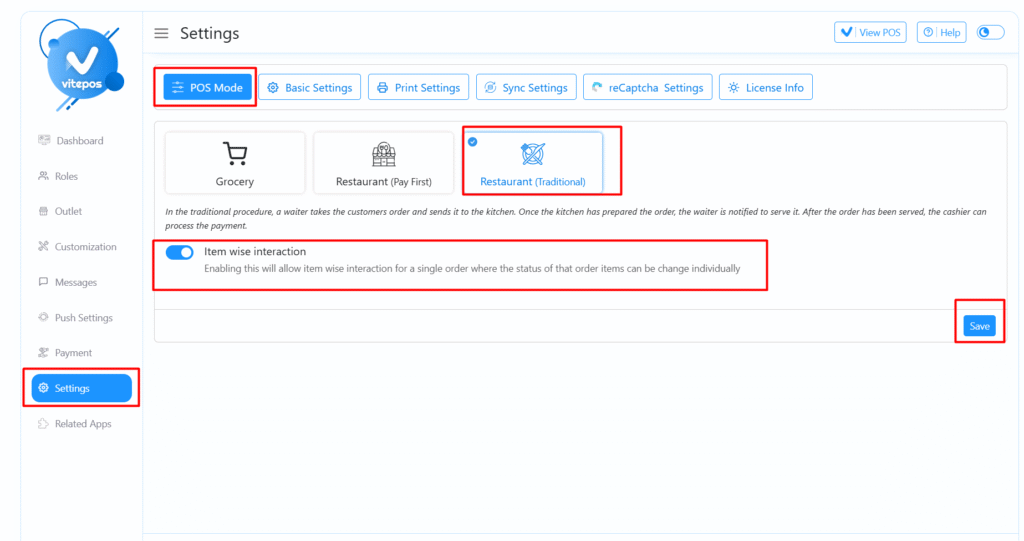
Navigate to the Vitepos Admin Panel, then go to the POS Mode Settings. Here, you can select how the restaurant order will interact with the kitchen — either Item-wise or Without Item-wise Interaction.

Restaurant Mode

Item-wise Interaction (Kitchen Order Control) #

After enabling Item-wise Interaction, open the POS panel. When an order is placed, each item will be sent to the kitchen separately. This allows the chef to start preparing items one by one, as per availability and flow.

Restaurant Mode

Without Item-wise Interaction (All at Once) #

Now, change the POS Mode setting to Without Item-wise Interaction from the admin panel.

Restaurant Mode

In this mode, when an order is placed from the POS, all items are sent together to the kitchen, and the chef can begin preparing everything at once.

Restaurant Mode

POS Panel #

The POS panel automatically reflects the selected interaction mode, ensuring seamless restaurant operations whether you’re running a single kitchen station or multiple preparation points.
Video Tutorial #

Watch the full Vitepos With Item-wise Interaction guide:

Video Tutorial #

Watch the full Vitepos without Item-wise Interaction guide:

Powered by BetterDocs

Scroll to Top