Vitepos
< 1 min read
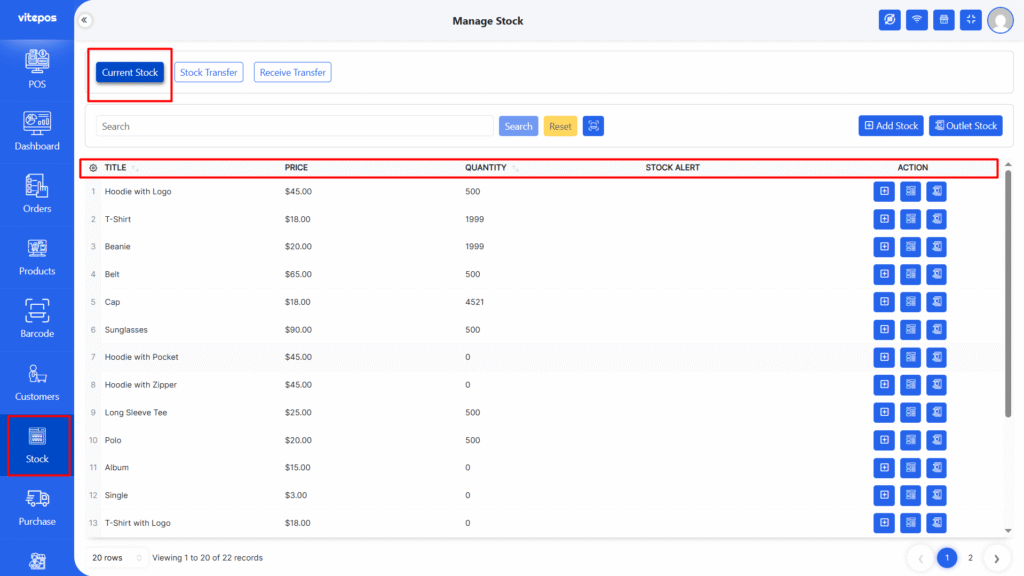
Start by navigating to the VitePOS POS panel, then go to the Stock module.
You will see a complete list of your products.
Select the product you want to check, then click on the “Outlet Stock” button.
To use outlet-wise stock tracking, make sure you have enabled full stock management using the“Outlet-wise Stock (Multi-Stock)” feature in your settings.
Want a visual walkthrough?Watch the VitePOS All Outlet Stock Check video here:
Powered by BetterDocs