Enable Offline Orders from Admin Panel #
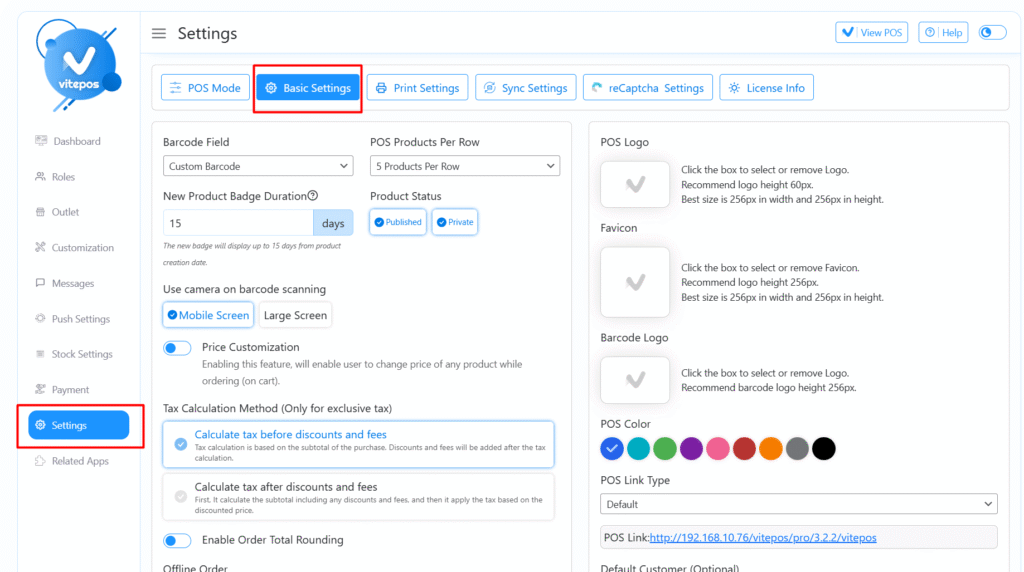
Go to the VitePOS Admin Panel, open the Settings Module, and click on the Basic Settings tab.
Find the Offline Orders option, enable it, and click Save.
Place Orders in Offline Mode. #
Note: You cannot log in to Pause while offline. However, if you’re already logged in and then lose internet connection, you can continue using offline mode.
View Offline Orders #
Offline orders will appear in the Order Module under the Offline Orders tab.
⚠️ Important Note #
If you refresh or reload the POS (Pause) tab while offline, you will lose access to offline features.
Wait until you’re reconnected to the internet to regain full functionality and resume order processing.
Sync Offline Orders After Reconnection #
Once the internet reconnects, your offline orders will automatically sync to the server.
After syncing, those orders will be visible under the Sale History tab in the Order Module.
Watch the Video Tutorial #
Want to see it in action?
Watch the VitePOS Offline Mode Feature Video: