Vitepos
< 1 min read
Start by navigating to the VitePOS POS Panel.
📌 Note: If Vite Rewards Pro is not installed, please install and activate it first.
Once activated, go to the Vite Rewards Admin Panel and configure your reward settings based on your business rules.
Return to the VitePOS POS Panel, select a few items, and add a customer to the cart.You’ll now see the option to apply rewards for that customer.
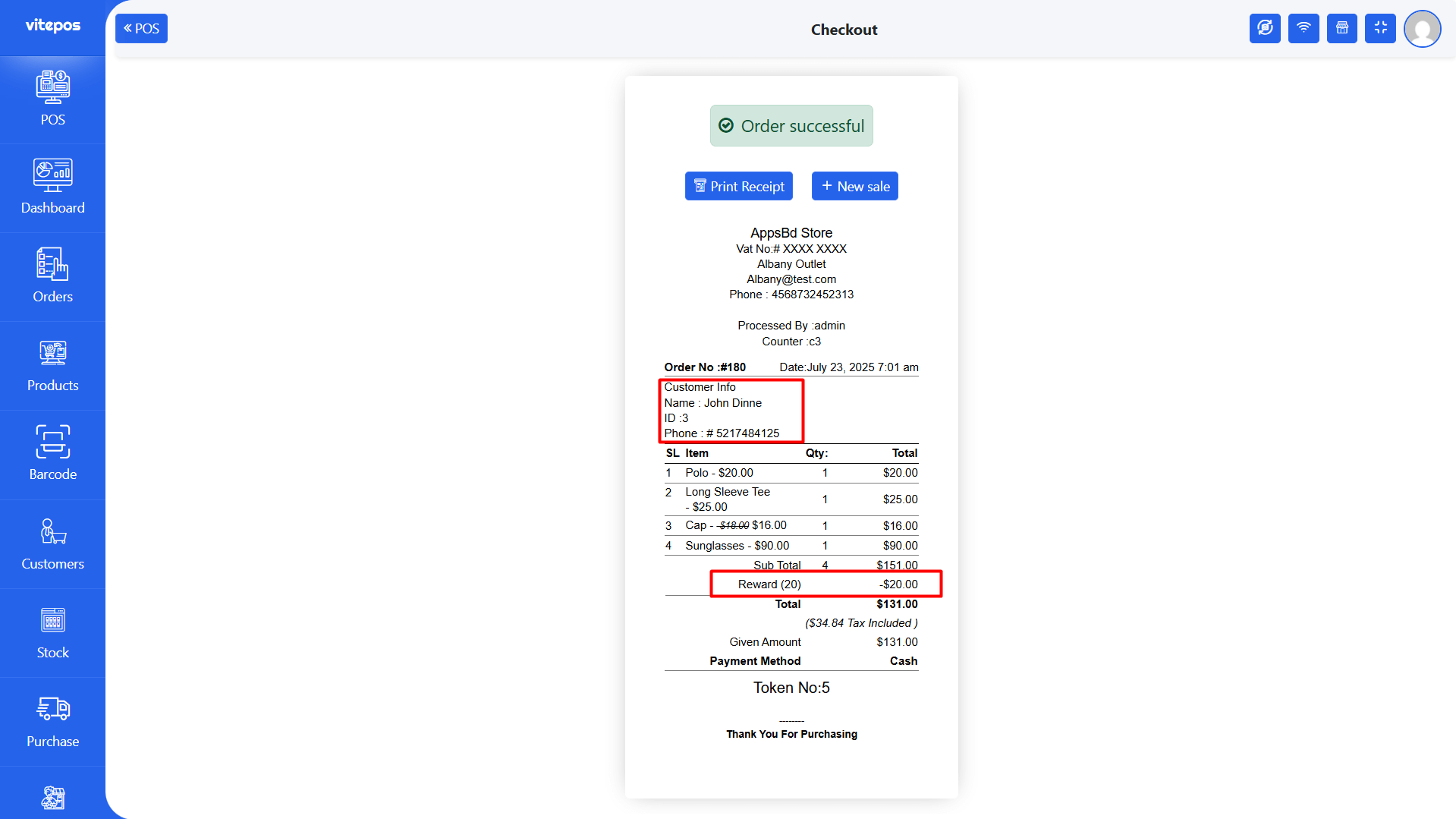
After completing the order, the applied rewards will be clearly shown on the printed invoice.
For a step-by-step guide, watch the VitePOS + Vite Rewards Pro Integration Video:
Vite Rewards
Powered by BetterDocs